

Design Space: DIY with Cricut

Design Space: DIY with Cricut App Info
-
App Name
Design Space: DIY with Cricut
-
Package Name
com.cricut.designspace
-
Developer
Cricut -
Category
Lifestyle -
Updated
2026/10/08
-
Version
6.81.0
1. Design Space: DIY with Cricut App Usage Overview
💳 If you’re looking at subscription-based creativity workflows, Design Space: DIY with Cricut is a practical way to plan, design, and produce physical projects directly from a connected Cricut machine.
🚀 After opening the app, you start by turning ideas into a build-ready layout, then you connect your device to your Cricut via Bluetooth® or Wi‑Fi for guided production steps.
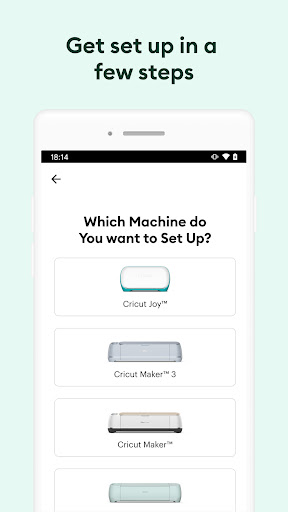
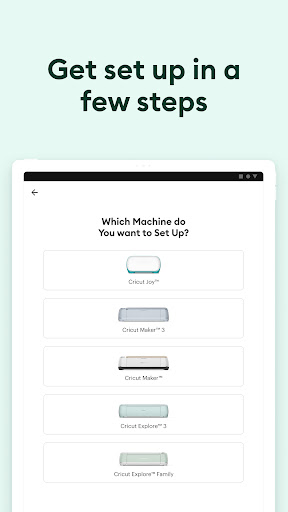
🧭 Quick setup is a major focus: the app helps you set up and activate your Cricut machine right from the start, reducing troubleshooting time for both beginners and teams.
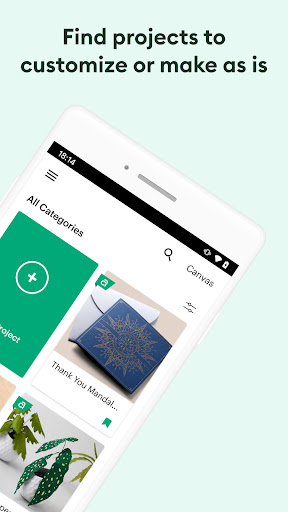
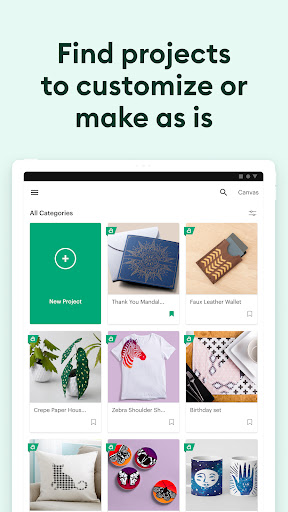
🎯 Instead of using generic tools, the app uses project-specific guidance. You tell it what you want to make, and it tailors the canvas size, relevant content, contextual tools, and assembly flow.
🖼️ For creators who care about consistency, the app supports previews before you commit materials. Seeing the finished result first helps prevent expensive scrap and rework.
🧠 From an operations standpoint, the app also applies automatic settings. You choose your material, and Design Space automatically selects the right settings for your Cricut machine model.
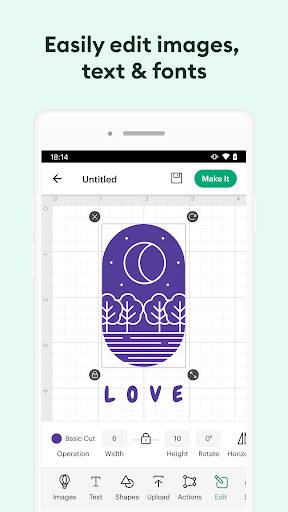
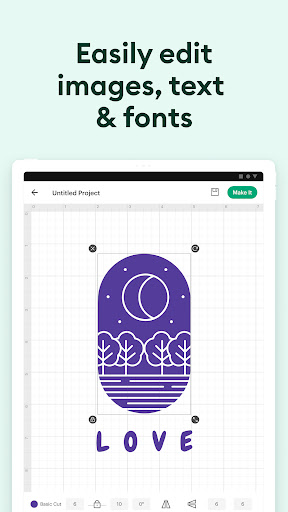
🧩 Editing happens inside the same workspace. You personalize designs with tools like Contour, Weld, and Offset, and you can refine shapes until they match your production requirements.
📦 If you use advanced features, some capabilities and the full content library require a paid subscription, which is similar to how many SaaS tools unlock premium assets through monthly plans.
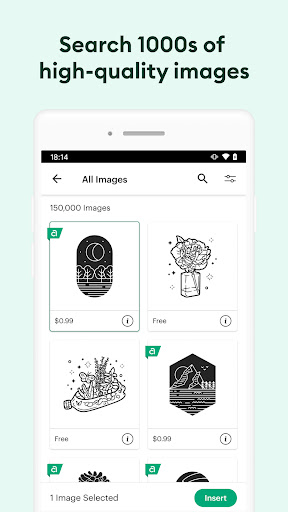
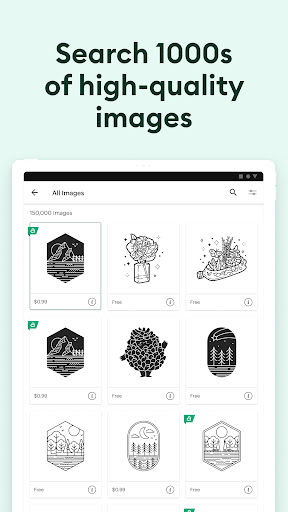
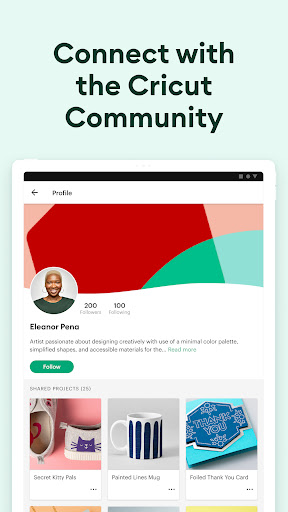
✨ When you subscribe to Cricut Access™, you unlock a large library of images, fonts, projects, and templates, plus additional benefits like monthly AI credits and exclusive discounts.
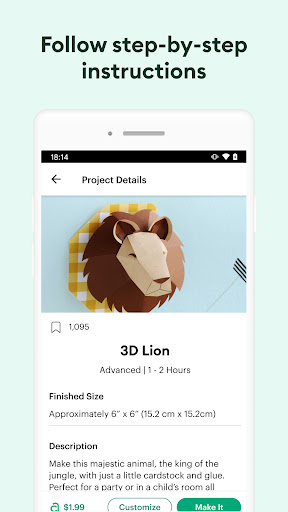
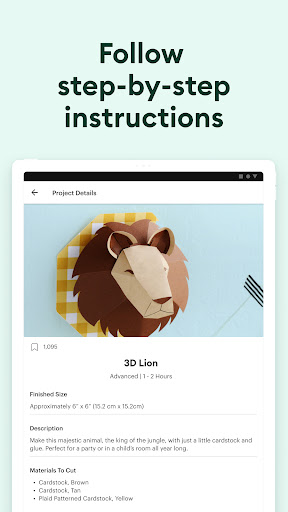
🔗 To complete a workflow, you connect to your machine and follow guided steps. This reduces reliance on manual trial-and-error, especially when you’re running repeat orders.
🧾 For people selling custom goods, this kind of guided process can support better throughput, planning, and cost control, which matters when scaling a small business or fulfilling customer orders.
2. Pros of Design Space: DIY with Cricut App
✅ 1. Fast onboarding with step-by-step guidance helps you get making quickly, so you can move from idea to first cut without lengthy setup sessions.
💡 2. Project-specific guidance is tailored to what you’re trying to create, including custom-sized canvas options and assembly instructions that reduce confusion during production.
📚 3. Powerful editing tools make personalization practical. You can use Contour, Weld, and Offset, and subscription tools add capabilities like Background Remover, Convert to Layers, and Warp.
🛡️ Beyond design tools, the “see it before you make it” preview approach supports confidence. It can reduce mistakes that otherwise cost time, materials, and money.
🧠 Automated material settings also improve repeatability. When your machine settings are applied correctly, you’re more likely to get consistent results across sessions.
3. Cons of Design Space: DIY with Cricut App
⚠️ 1. Some software features and the full content library require a paid subscription. If you don’t want recurring costs, your options may feel limited.
💸 2. Relying on Cricut Access™ for the largest library can shift value from one-time purchases to subscription value, which may affect budgeting for hobbyists and small teams.
🔧 3. Advanced tools exist, but the learning curve can still be real. Contour, Weld, Offset, and layer workflows take practice to master for production-quality results.
📉 4. Because the app is built around connectivity and guided steps, performance can depend on your setup environment, including Bluetooth®/Wi‑Fi stability.
🧾 5. For enterprise-style workflows, the app’s guidance may feel rigid if you prefer highly custom manual control at every stage of file preparation.
4. Summary
🌟 Design Space: DIY with Cricut App feels like a full “design-to-output” hub, especially for people who want guided setup, clearer project structure, and safer previews before cutting.
🧰 The strongest benefits are the end-to-end workflow: onboarding support, project-specific guidance, automatic settings, and editing tools that help you iterate quickly without leaving the app.
📌 If you’re building a brand with custom products, this can support smarter production planning. Even small reductions in errors can translate into better margins, faster turnaround, and fewer wasted materials.
🔒 The subscription model is the main tradeoff. If you want the broadest library and advanced features, you should expect ongoing costs similar to many SaaS and content subscription services.
💬 Personally, I’d recommend it to anyone who values convenience and confidence: previews, guided steps, and editing tools make it easier to go from concept to a physical item you can hold.
5. How to Download the Design Space: DIY with Cricut App
📥 You can download the Design Space: DIY with Cricut app from our website. After downloading, install it on your device and follow the in-app steps to connect your Cricut machine.
🧭 Once installed, you’ll be guided through activation and setup, then prompted to choose what you want to make so the app can tailor your canvas and tools.
🔗 After that, you can connect through Bluetooth® or Wi‑Fi, preview your project, and let the app apply automatic settings based on your selected material.
Design Space: DIY with Cricut
Version 6.81.0 Updated 2026/10/08


