

Link to Windows




Link to Windows App Info
-
App Name
Link to Windows
-
Package Name
com.microsoft.appmanager
-
Developer
Microsoft Corporation -
Category
Productivity -
Updated
2026/04/23
-
Version
1.26041.171.0
1. Link to Windows App Usage Overview
📱 Link to Windows turns your Android phone into a near-real-time extension of your Windows PC, supporting productivity, security-minded workflows, and everyday collaboration.
🔌 Start by installing the Link to Windows app on your Android device and connecting it with Phone Link on your Windows PC, so both devices recognize each other instantly.
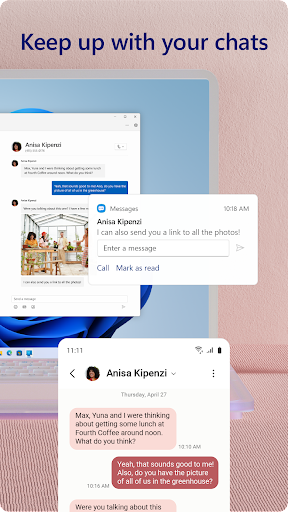
📲 After setup, you can view and reply to text messages from your computer, which helps reduce context switching during work hours and client sessions.
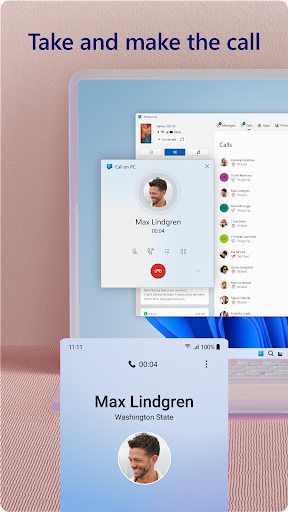
📞 You can also make and receive calls from your PC*, so important calls don’t interrupt your typing, spreadsheets, or payment checks.
🔔 Notifications are managed on your PC as well, making it easier to triage alerts for enterprise apps, banking updates, or subscription reminders.
🖼️ A big daily-life win is photo access: you can instantly reach images on your phone from your PC, then copy, edit, and drag-and-drop without touching your handset.
💳 This “phone-to-PC” flow supports high-frequency work patterns common in fintech, SaaS operations, and subscription management teams that live in dashboards.
🧩 The app includes cross-device copy and paste, file drag-and-drop, and an apps experience, all aimed at reducing friction for SaaS admins and customer support staff.
🧠 If you rely on accessibility tools, the accessibility service lets you control phone apps from the PC using keyboard navigation and spoken feedback, without collecting personal data.
- *Calls require a Windows 10 PC with Bluetooth capability.
- Drag and drop, Phone screen and Apps require a compatible Microsoft Duo, Samsung, or HONOR device.
- Apps experience needs a Windows 10 PC running the May 2020 Update or later with at least 8GB of RAM, and your Android device must run Android 11.0.
2. Pros of Link to Windows App
✅ The most valuable benefit for busy professionals is real-time messaging and call handling from your PC, which improves responsiveness in sales, support, and operations.
📨 Reading and replying to SMS on a bigger screen makes it easier to manage customer conversations, payment confirmations, and account alerts without fumbling with a phone.
🔔 Notification management on Windows helps you keep focus, supporting cleaner workflows for compliance reviews and subscription billing follow-ups.
🖼️ Photo sharing is surprisingly smooth: copy, edit, and drag-and-drop can remove delays that often slow down marketing approvals and document preparation.
🗂️ Cross-device file transfer is also practical for knowledge workers, especially when you need to move invoices, receipts, or contract images quickly.
🖱️ Using your PC’s larger display, keyboard, mouse, and touch screen turns phone tasks into a desktop-friendly workflow that feels natural.
💼 For enterprise-minded users, there’s also a clear capability set: Phone Link settings includes options like Send feedback to influence future features.
🧩 Integration is convenient because the app is integrated with select Microsoft Duo, Samsung, and HONOR phones, so you can avoid extra downloads in many cases.
3. Cons of Link to Windows App
⚠️ One limitation is that call features depend on Windows 10 Bluetooth support, which can be a blocker for some desktop setups and secure workstations.
🧷 Drag-and-drop, Phone screen, and Apps require compatible devices, so not every Android user will get the full feature set.
📶 The apps experience has stricter requirements: Windows 10 May 2020 Update or later, at least 8GB RAM, and Android 11.0, which may exclude older devices.
🔍 Compatibility requirements can be confusing at first, especially for teams managing mixed devices across departments or remote onboarding cohorts.
🛠️ Some people may also find the setup process slightly involved because it requires pairing an Android app with Phone Link on Windows.
🧠 While the accessibility service supports keyboard navigation, those expecting a fully universal accessibility experience might need to experiment to match their workflow.
4. Summary
🌟 Link to Windows feels like a modern bridge between mobile and desktop, and it particularly helps users who handle messages, calls, and files all day.
📈 If you care about speed, this app supports fast switching between dashboards, email, and customer conversations, which is valuable in SaaS, fintech, and support roles.
🖼️ The photo transfer experience stands out as genuinely useful, turning image sharing and editing into a drag-and-drop habit.
🔒 From a practical standpoint, pairing requirements and device compatibility are the main trade-offs, so it’s smart to check whether your phone qualifies.
💡 Overall, Link to Windows is a strong productivity add-on, especially for anyone managing subscriptions, approvals, or time-sensitive customer communications.
5. How to Download the Link to Windows App
⬇️ To download Link to Windows, you can get it from our website, then follow the on-screen steps to install it on your Android phone.
🔄 Next, open Phone Link on your Windows PC and connect it with your phone to start texting, calls*, notifications, and desktop-based interactions.
📣 After connection, you’ll find Link to Windows in the Quick Access tray by swiping down from the top of your screen, making it easy to return anytime.
🔧 Finally, you can review Link to Windows settings, including Send feedback if you want to request features for future releases.
Link to Windows
Version 1.26041.171.0 Updated 2026/04/23


